HOW TO: Make a Blog Header Graphic
This one’s a quick & dirty guide for the people that asked me how I created my header graphics. Header graphics mark a blog as unique and can lure a reader in from the get-go. Create several of them, make them rotate and your blog will give off a dynamic appearance.
My image editor of choice is currently Photoshop CS2. I am not too sure if this tutorial can be easily followed utilizing other image editors, but if you have any questions my hotline is always online (pun not intended). This guide will mainly follow how to make my specific header, but feel free to experiment and play with different colors and shapes.
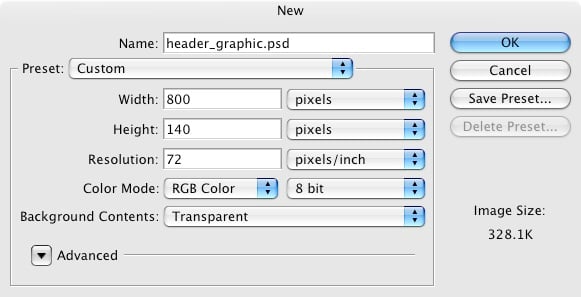
Fire up Photoshop and create a new file via Open>New…. For this example, I will be using dimensions of 800 pixels wide and 140 pixels high.
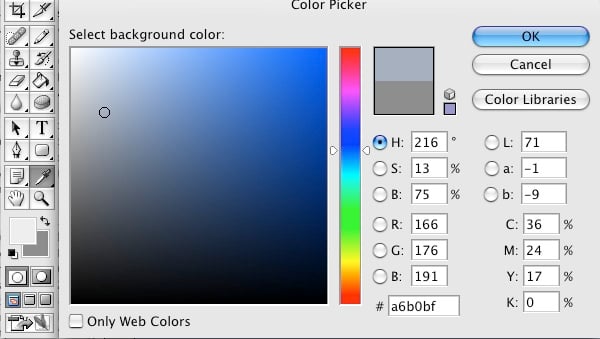
First we will color the background by double-clicking on the color palette and changing the default color to #A6B0BF, which is the background color of this website.
Then, select the paint bucket tool. If you do not see it, click and hold the
icon for a menu, then select the paint bucket tool. Move your cursor to the image and click once. It should all be colored in #A6B0BF.
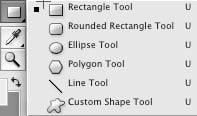
The next step is creating the links bar. Select the Rectangle Tool.
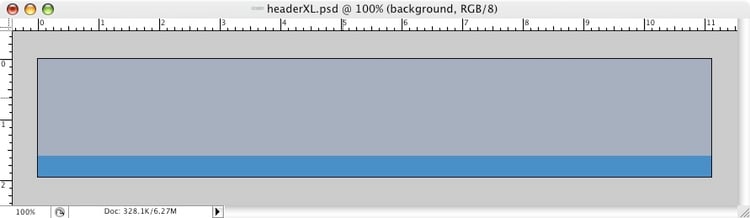
Getting the correct height for the links bar was a bit of trial and error, as you have to save it, upload it and see how it looks on the site. I finally got the dimensions of the links bar to be 800 pixels wide by 32 pixels high; bottom-aligned. Change your default color to #3388CC and start using the rectangle tool from the bottom left of the image and drag across until you get the desired look. After you have that working nicely, change the opacity to 80% via the slider in the layers pane. You should have something like this.
Change the color to #FFFFFF and still using the rectangle tool make a thin line directly above the links bar you just created.
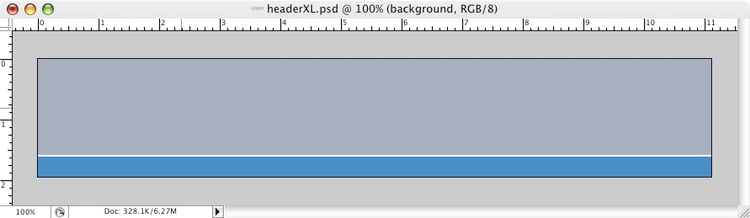
Now on to adding the text box and the text. Select the Rounded Rectangle Tool and change the Radius to 25 pixels.
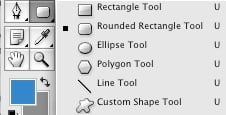

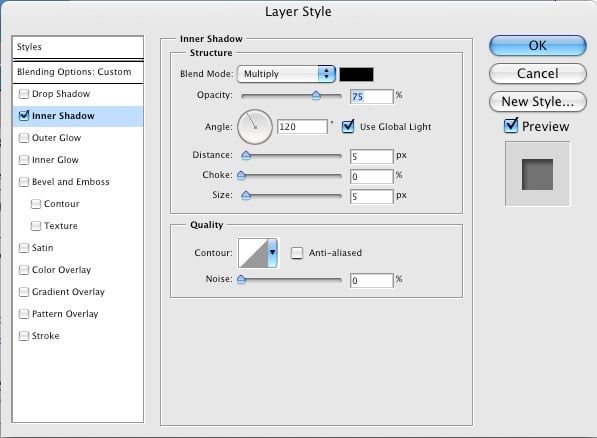
Change the color palette back to #3388CC and create a text box that will be large enough to hold your header and sub-header titles. Set the opacity of the rounded box to 80%. In the layers pane, select the shape layer for the rounded box you just created and double-click the little f icon on the bottom. Check the inner shadow box and play with the settings until you find something you like.

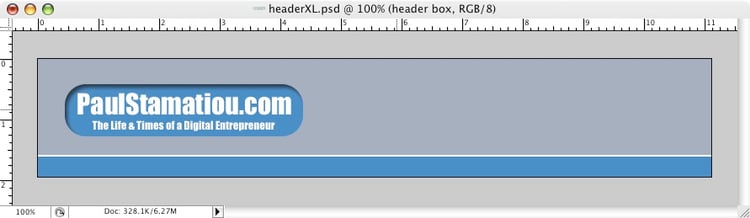
Whip out the text tool, select the font, font color and font size you wish to use. Use the tool once for the header title, and a second time for the sub-header title. Don’t create them in one layer. It is easier to manage them if they each have their own layer. Select the move tool (pointer) and position the two text layers so that they are positioned correctly within your text box.
Now to the actual image of the header. Find one of your favorite images, open it in Photoshop and crop it to 800×140. Select the Rectangular Marquee Tool, select the entire image, switch to the Move Tool and drag your image to the header image we’ve been working on. Nudge the image with the cursor keys to get it into position. You can hold shift while pressing a cursor key to move by a larger amount, rather than by pixel. You may use the Saturate tool at about 30% if you wish to liven up the colors; make the reds more red, greens more green, etc.
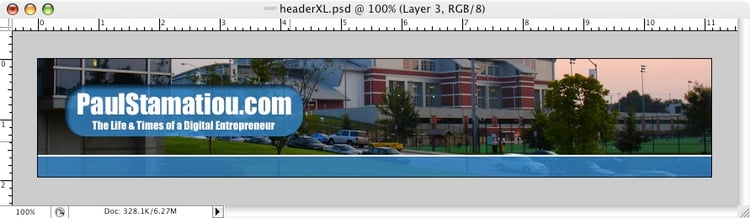
We are almost there. We just need to round the corners, and add a gradient to the links bar. Select the Rounded Rectangle Tool and change the Radius to 35 pixels.

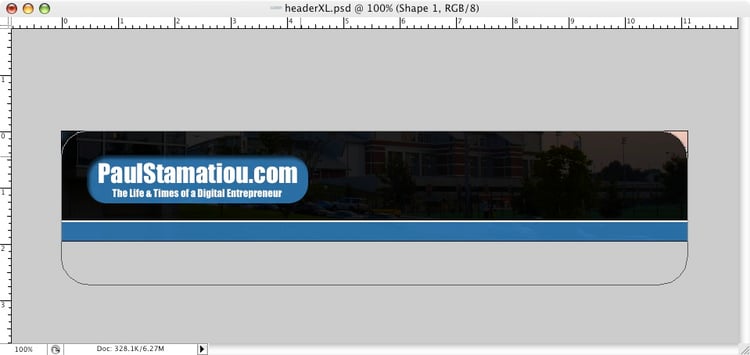
Starting from the top left, create a rounded rectangle that goes all the way to the right border but extend it below the entire image so that the bottom of the header doesn’t get rounded. This is what you should see, it doesn’t matter what the color is at this point as we will be discarding the shape and leaving the path.
The next part is a bit tricky. We need to drag the path from the rounded rectangle shape onto the image layer. Look over at your layers pane, specifically at the following two layers.
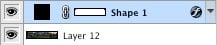
Still in the layers pane, click and hold your cursor on the white “Shape” box. Then drag it onto the image layer. You should be left with this.
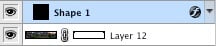
Now we just need to delete the remaining shape. Drag it to the trash on the bottom of the pane.

You can now see the near final product. Earlier when we created the links bar we dialed the opacity down to 80%, this was so we could create a gradient behind it to provide a subtle overall blue gradient. Create a new layer and put it right below the links bar. Select the marquee tool and create a selection of the same dimensions as the links bar. Select the gradient tool now, and assuming the default white to black gradient is selected, drag the cursor from the bottom of the selected area to the top. This is what the gradient layer only looks like.
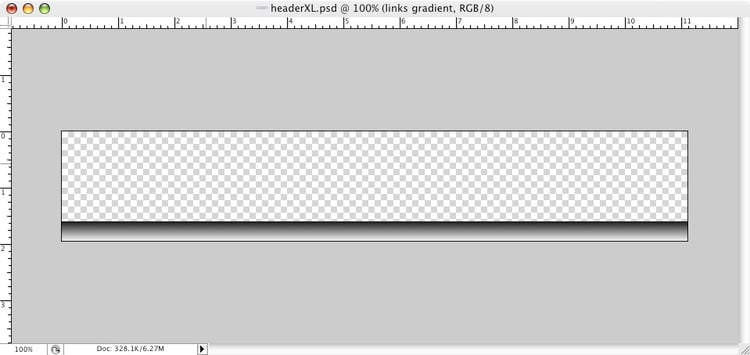
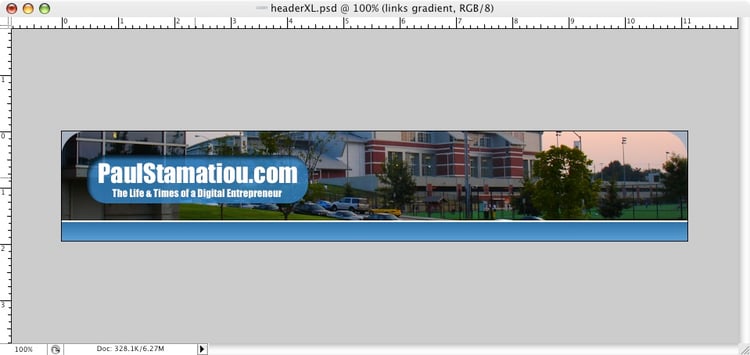
And the completed image. If yours doesn’t look the same, make sure your layers are in the proper order.
Resources
If you want to learn how to do other things in Photoshop I highly recommend checking out Photoshop Support, Tutorial Select, Photoshop101, Good Tutorials and PRAGT.


useful tutorial
:-)
found this on digg.
very informative and helpful.
Thanks for the great tutorial
I have a slab of rotating headers on my blog - and it definetely adds to a more dynamic, fresher look when someone reloads the page etc.
Also found this on Digg. Very useful and interesting. I may just try it out. Thanks!
Very nice Paul, thanks for the tutorial :)
Avto einai poly orea!!!!
Evxaristo!!!!
Will you cover how to add the links at the top (like you did on your header)? Excellent tutorial!
Allan: WordPress automatically puts those links there for me. All you see that isn’t in the header itself is done via CSS. The WordPress theme I am using is K2.
thanks man! I’m going to try this on my next website! also, I read your “random facts” in the about section. I totally agree that “Kevin Rose has got to be the coolest tech person.”
Haha, thanks!
Carlos: Then eitanai tipota ;-).
what is the HTML to get that image as a header?
Evan: I’m assuming you are talking about for your Blogger blog. I am not familiar with blogger, so I suggest taking a look at Blogger Forums. I am not sure if this helps, but basically you go into your template and insert an image before the content of the blog.
ah-ha, just what i was looking for to spice up my blog. thanks heaps for that.
Aperture is NOT an image editing software!
;o)
It’s the SAC; excellent. Hello, fellow Tech student. It’s good to see Tech represented well on Del.icio.us (http://del.icio.us/popular/), and it’s a good tutorial for PS beginners, too.
Sweeeet … That was really nice :P
Please continue to make this nice tutorials :)
Simply explained and direct to the point. Thanks
How about a tutorial that doesn’t require a piece of software that costs hundreds of dollars?
Steve: I’m fairly sure this tutorial can be followed along with the free, open-source GIMP.
It was fun visiting here. Wishing you a great day!
I find The Gimp frustratingly unintuitive next to Photoshop. I’ve been trying to learn it, but it’s frustrating having to re-learn things you already know how to do in another program. I guess that’s why The Gimp is free and Photoshop isn’t.
you’re doing a great work here. i enjoyed visiting here very much. thanks!
Paul,
Man, finally got around to pimpin’ up Dev Dawn with K2 and your Deviance theme mod.
Awesome stuff! Thankyou very much for putting the time and effort into this.
Regards,
Stu
Hmmm. Not sure why, but my comments don’t seem to be appearing.
Anyway, Paul … a hundred thankyous for the time and effort put into Deviance. You convinced me to move to K2 and use Deviance. Thankyou very much. Dev Dawn is now pimped … my ride.
Cheers.
Actually Aperture is an image editing software suite. It just currently allow a user to do the extra things that Photoshop can do like create shapes and edit paths. But if you play around with the Aperture, you would see that it is for image editing. Think of it as iPhoto Pro :)
Is there a sample download *.psd source file to save me some steps?
Thanks for the great tutorial. By following the instructions, I’ve just made my own blog header tonight!
I have been a lamed blogger for 2 yrs. I’ve seldomly used Photoshop, and have never throught about making my own blog header. However, by follow your tutorial, I not only make my first blog header but also have learnt how to use layer and text tools in Photoshop. :-D
Especially thanks for the Resources. The links are helpful. Have you ever heard a story about fishing? “If you want to let a person who can feeding himself, you should not only give him fishes, but also teach him how to fish” :-)
So, if you feel comfortable, please tell me (actually “us” ;-) ) the secret of design/redesign a blog template (yeah! re-construct the look of a blog) in Photoshop, and even in Photoshop+PHP. :-D
I am looking forward for the tutorial!
Thanks again.
Paul you might want to check your comment feature. Like Stu, my comments are not showing up. lol I have tried several times to get in touch with you. Your comment feature does not like me. LOL
Yipee, it went in. LOL
This is just the information I was looking for. I really want to make an exciting header for my blog . . . but I don’t have photoshop. Do you have any ideas on how to make a header if I only have basic programs like Word, Image editor and SnagIn?
Very useful tutorials :) thnx
Hi there, i have just created several header images 5 to be exact, and i was wondering if you could help me put into effect the randomizer php script that you refer to at the top of the page. is it in plugin form?? and can you have 2 seperate errors on your blog that will randomize. eg: header will randomly get pics from one folder, then there might be an image on the sidebar that randomly gets pics from another folder.. i would love your help on this, i have found your tuts to be the best around :)
Thanks
Looking Forward to hearing from you
Amy
Great tutorial. This is a solid foundation for building great header graphics. Maybe at some point you could add the step to position the horizontal nav links on top of the nav bar?
I’m out of touch with technology for the most part. Are you saying there is no way to make my blog header unique (read: pretty) without photoshop or some other program like it? I certainly don’t have $$$ to drop on a program such as that. All I am wanting to do is put some of my art on my blog header. Is this impossible?
Thanks so much,
Laura
Thanks 4 ur useful tutorial
CAn you help me please? iam traying to make a header for my blog using photoshop but the header shows in the blog diferent from the photoshop. I think is the saving that makes the header looking bad….
Do you know of anyone who makes header graphics? I would love to get some made for about 6-8 blogs….
Thanks!
Patrick
any idea how to make header pics rotate in blogger?
Great summary Paul.
I was able to do this with GIMP.
Thanks for sharing…I guess this is timeless as I just found your web page now in Jan 2007!
You don’t know how use this is to a newbie in graphics like me…thanks again.
Hi,
Thanks for great post. Please visit my site http://library-cafe.com for great tutorials.
Muy interesante . Estoy explorando para luego preparar el mÃo.
Gracias
Thanks for this great tutorial! It teaches me all I need to know.
You’ll love my Blog!
This was VERY useful! I’ve just been introduced to photoshop and now I feel like I know more just from doing this header than all of the past months I’ve been trying to learn on my own. Thank you!
I found another way to get rid of that header text is to just make the font color white. It leaves an ugly space up there, but I guess that’s what I’ll have to do. Right now I have my blog named “…” — I think I can still change that to whatever I want, so long as I keep the ‘title’ color white, to match the background of the blog. I wish I could get rid of the space. Or move it to the bottom.
Dear Paul,
I would like to ask you that how to change my blog header? do u have any idea or please help me to change my blog header.
Awaiting your reply,
Thanks
Ibrahim
Hey! I followed the tutorial and ran into some trouble. You can see what I mean by going to muscularperformanceblog.com and looking at the header. Any help would be appreciated.
thankyou.
Thanks for this! I also appreciate that you love California (my hometown) and Mac (my baby). :)
i’ll use it for my blog !
thxs
thanks for the GREAT post! Very useful…
this is cool
very interesting, but I don’t agree with you
Idetrorce
it’s very helpful.. thanks!
in my blog
// Used for showing and hiding user information in the comment form function ShowUtils() { document.getElementById(â€authorinfoâ€).style.display = “â€; document.getElementById(â€showinfoâ€).style.display = “noneâ€; document.getElementById(â€hideinfoâ€).style.display = “â€; } function HideUtils() { document.getElementById(â€authorinfoâ€).style.display = “noneâ€; document.getElementById(â€showinfoâ€).style.display = “â€; document.getElementById(â€hideinfoâ€).style.display = “noneâ€; } […]